Free Fire MAX Sensitivity Settings: The Real Numbers and How to Tune Yours
We opened the Sensitivity screen in our own Free Fire MAX account and wrote down every number and every help line, so you can start from facts instead of someone's "headshot settings".
Sensitivity decides how far your view turns for the same swipe of your thumb. Too low and you cannot turn in time; too high and the crosshair flies past the enemy. No number gives you automatic headshots, but the right one makes your aim predictable, and that is what wins fights.
How we checked. On 9 October 2026 we opened Settings in our own Free Fire MAX test account, running on an Android emulator (LDPlayer) on a PC. We read every slider and tapped every help button. We switched presets and options only to read them, then put everything back to the defaults. Every screenshot on this page is ours.
Correction, 9 October 2026: the first version of this guide said there is no way to import someone else's sensitivity in Free Fire MAX. That was wrong. A shared HUD can carry its creator's sensitivity. See Copying someone else's sensitivity.
The short version:
- New, or not sure? Use Garena's DEFAULT preset: 100, 100, 100, 100, 71, 63.
- Rush close range and turn fast? Try Garena's HIGH preset: 185, 185, 185, 170, 150, 150.
- Keep Aim Precision on Default while you tune.
- Fix your frame rate first. Then change one slider at a time, 10 points at a time, in Training.
Where to find sensitivity in Free Fire MAX
- In the lobby, tap the gear icon at the top right.
- Tap IN-MATCH in the menu on the left.
- Tap SENSITIVITY in the top row, after HUD, Controls and Information.
You get six sliders. Each has a number and a − and + button, and every tap moves the number by 1. The bar goes up to 200, and 100 sits in the middle. Tap the name of a slider and the box on the left explains what it does.
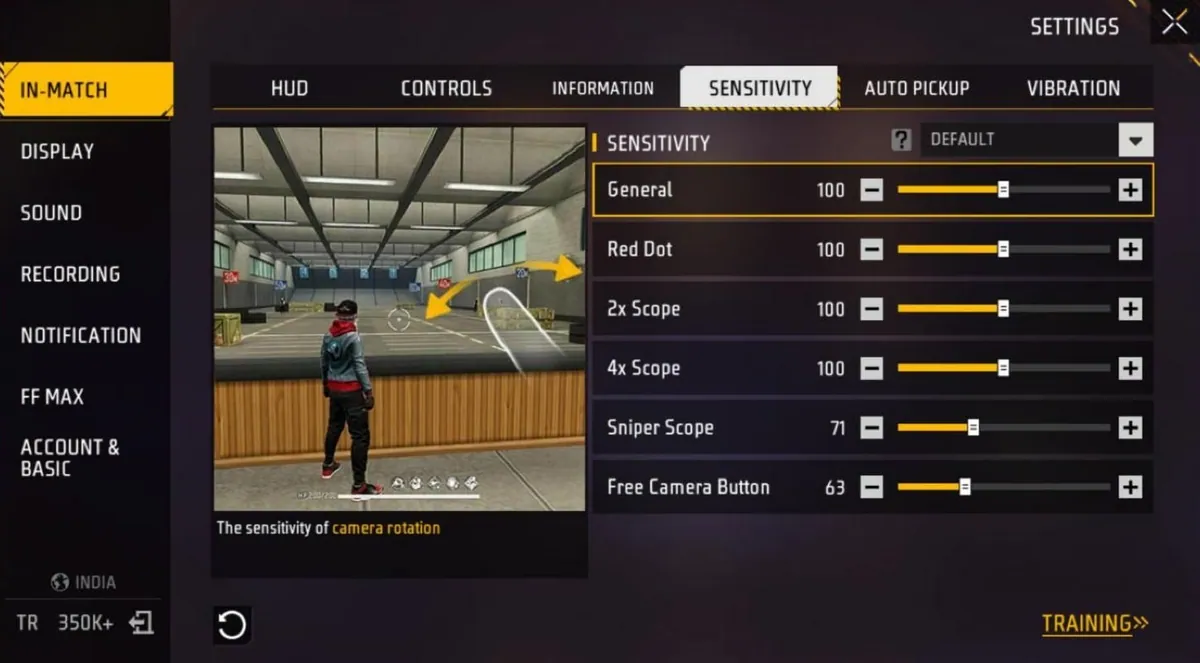
The default numbers, and what each slider does
| Slider | DEFAULT | What the game's help line says it controls |
|---|---|---|
| General | 100 | Camera rotation, when you are not using a sight or scope |
| Red Dot | 100 | Camera rotation with a Red Dot sight |
| 2x Scope | 100 | Camera rotation with a 2x scope |
| 4x Scope | 100 | Camera rotation with a 4x scope |
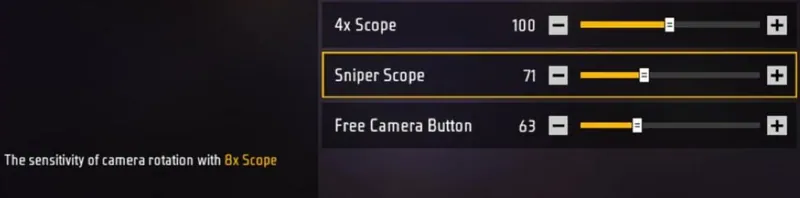
| Sniper Scope | 71 | Camera rotation with the 8x scope |
| Free Camera Button | 63 | Dragging with Free Camera |
Two things catch people out:
- Sniper Scope means the 8x. Tap it and the game's help line reads "camera rotation with 8x Scope". If your sniper feels slow, this is the number to change, not 4x.
- Free Camera is not your normal camera. It only applies when you drag with the Free Camera button to look around.
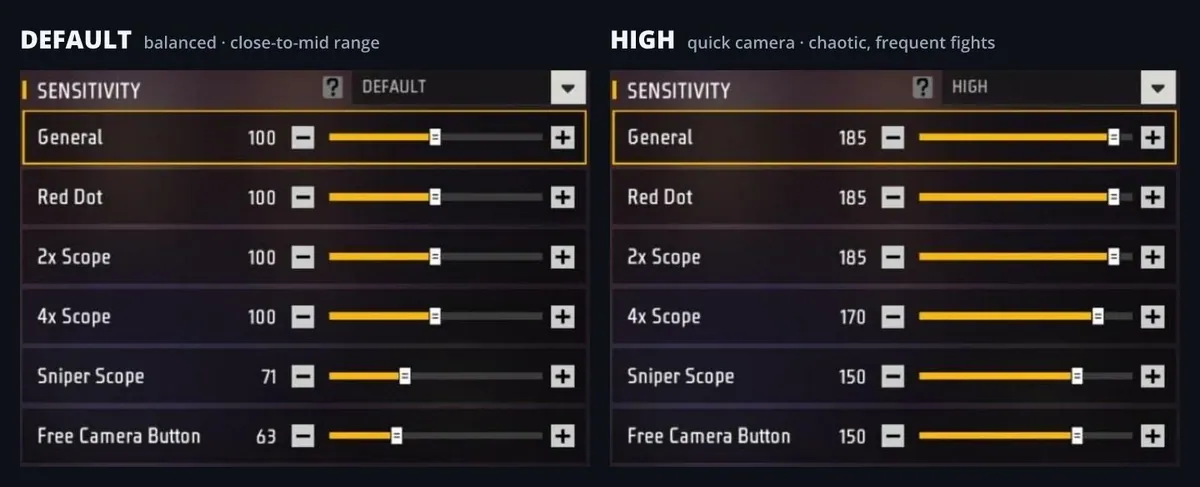
Garena's two presets: DEFAULT and HIGH
The dropdown at the top right of the Sensitivity screen has two presets, and the ? next to it describes the one you have picked:
- DEFAULT has "balanced settings suitable for close-to-mid-range combat".
- HIGH is meant for "quick controls in chaotic and frequent combat".
| Slider | DEFAULT | HIGH |
|---|---|---|
| General | 100 | 185 |
| Red Dot | 100 | 185 |
| 2x Scope | 100 | 185 |
| 4x Scope | 100 | 170 |
| Sniper Scope (8x) | 71 | 150 |
| Free Camera Button | 63 | 150 |
Both presets keep the 8x well below General, and HIGH also drops the 4x a little. The more a scope zooms in, the bigger every small thumb movement looks, so long scopes need less speed.
The reset button does not always mean 100
We tested the circular arrow at the bottom left of the screen. It asks you to confirm resetting all sensitivity settings to default, but "default" means the preset you have selected. With HIGH selected, it put everything back to 185, 185, 185, 170, 150, 150. To get the original numbers back, pick DEFAULT in the dropdown.
The dropdown also kept showing "HIGH" after we nudged General from 185 to 186. The preset name alone does not tell you whether the numbers were changed, so always check the numbers.
Aim Precision: the setting most guides skip
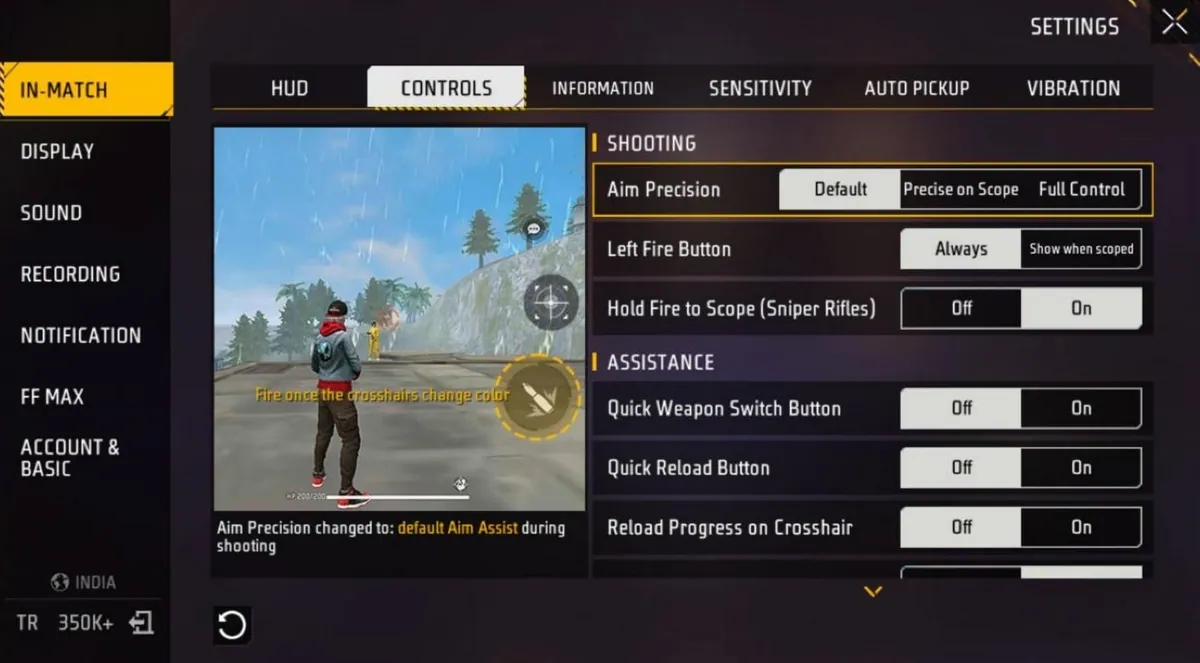
This one lives next door: Settings → In-Match → Controls → Shooting → Aim Precision. It changes how much the game helps your aim, so it changes how your sensitivity feels.
| Option | What the game says it does |
|---|---|
| Default (the game's default) | Default Aim Assist while you shoot. Its demo says to fire once the crosshair changes colour. |
| Precise on Scope | Full manual control while scoped in, default Aim Assist when you are not |
| Full Control | Manual aiming all the time. The game warns that the crosshair colour change "may not suffice for accurate aim". |
Our suggestion: stay on Default while you tune your numbers. If you snipe a lot, try Precise on Scope. If you switch to Full Control, go back to Training and test your scope numbers again, because the game's aim assist is now off.
Where to start: three sets you can copy
These are starting points, not "pro" or "headshot" settings. Two are Garena's own presets. The midpoint is our suggestion: roughly halfway between the two, rounded to the nearest 5.
| Start from | General | Red Dot | 2x | 4x | Sniper (8x) | Free Camera | Suits |
|---|---|---|---|---|---|---|---|
| Garena DEFAULT | 100 | 100 | 100 | 100 | 71 | 63 | New players, mid-range fights |
| Midpoint (ours) | 140 | 140 | 140 | 135 | 110 | 105 | DEFAULT feels slow but HIGH overshoots |
| Garena HIGH | 185 | 185 | 185 | 170 | 150 | 150 | Close-range rushing, fast turns |
Make your sensitivity card
Start from a preset, change any number (0 to 200), then copy it or send it to your squad. The Sensitivity screen has no import box, so type the same numbers in the game by hand.
Tune it in 10 minutes
The Sensitivity screen has a TRAINING » link at the bottom right. Use the training range to test every change. The game's own preview pictures for these settings show it, with distance signs from 10 m to 50 m.
- Change one slider at a time, by 10. Write the numbers down, or keep them in the card above.
- General: stand still, pick a target to your side and turn to it with one quick swipe. Overshoot? Go 10 lower. Stopped short? Go 10 higher. Stop when you land on it three times out of four.
- Red Dot and 2x: aim at the head of a target 20 to 30 m away and fire short bursts. If the crosshair keeps jumping off the head while you correct, go lower.
- 4x and Sniper (8x): use the farthest targets. You only need small corrections at this range, so steady matters more than fast.
- Free Camera: run and drag to look around. If the view whips past what you wanted to see, go lower.
- Then leave it alone for a few matches. Good sensitivity feels boring and predictable. Changing it every day keeps your thumb guessing.
Low-end phones: 2 GB, 3 GB and 4 GB RAM
RAM does not change what a sensitivity number means. What changes is the frame rate. When a phone drops frames, the same swipe moves the view in jumps, and no number can fix that. Sort out the frame rate first, then tune.
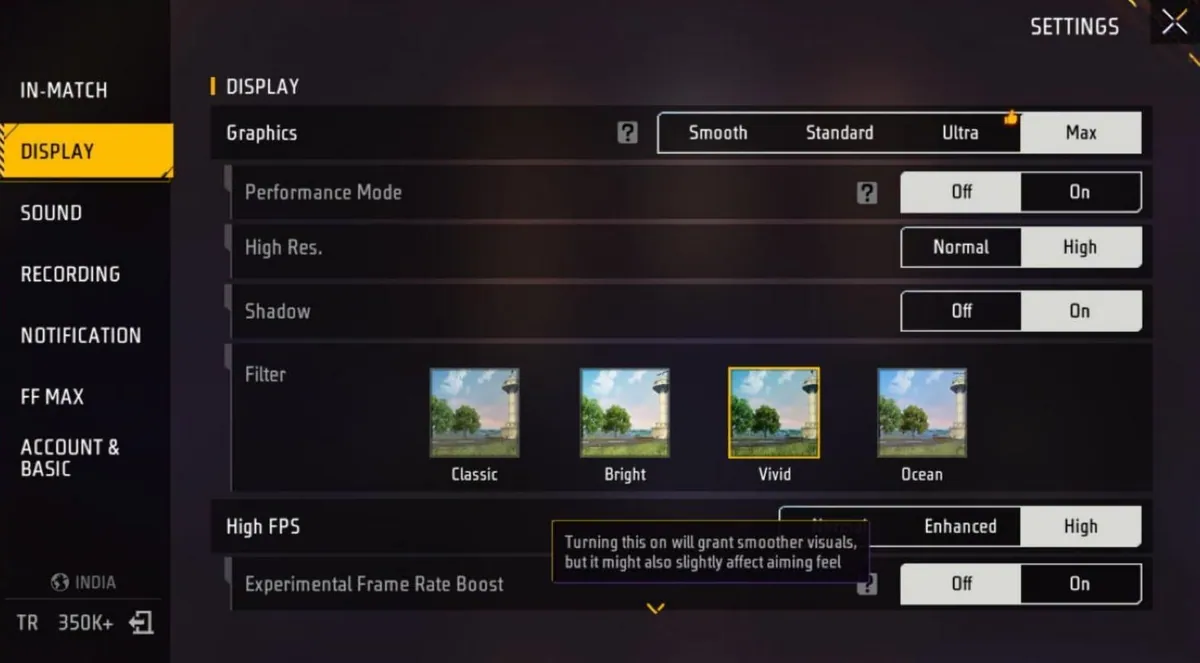
All of this is under Settings → Display. This is what the game's own help says:
- Graphics (Smooth, Standard, Ultra, Max): Ultra graphics, shadows and filters can drain performance, and on Smooth some items, such as enemy outfits, may not be shown in certain modes.
- Performance Mode: reduces stuttering, improves frame rate and saves battery.
- High FPS (Normal, Enhanced, High): higher is smoother, as long as your phone can hold it without heating up.
- Experimental Frame Rate Boost: smoother visuals, but the game itself says it "might also slightly affect aiming feel". If you turn it on, test your sensitivity again.
Our suggestion for 2 to 4 GB phones: Smooth graphics, Performance Mode on, and the highest High FPS level your phone holds without stutter or heat. Then start from DEFAULT or the midpoint.
On our test device, a PC emulator, the game had picked Max graphics and High FPS on High, with Performance Mode and Frame Rate Boost off. It also showed a thumbs-up icon on Ultra. Your phone will show its own defaults.
Moving your settings to a new phone
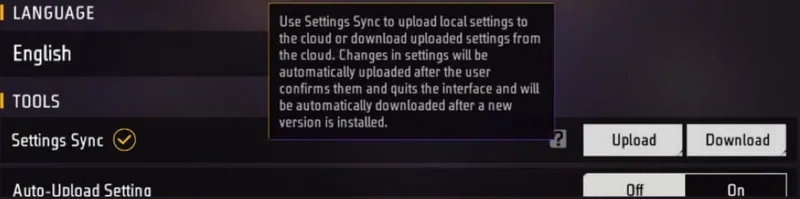
Go to Settings → Account & Basic → Tools → Settings Sync. Its help says it uploads your local settings to the cloud or downloads the ones you uploaded. It also says changes upload automatically once you confirm them and leave the screen, and download automatically after you install a new version. Below it is an Auto-Upload Setting switch, which was off on our account.
The safe way:
- On the old phone, tap Upload.
- On the new phone, log in to the same account and tap Download.
- Play a round in Training. A bigger or smaller screen changes how far your thumb travels, so you may need to adjust.
We read this screen but did not press Upload or Download on our account.
Copying someone else's sensitivity
The Sensitivity screen itself has no import box. On 9 October 2026 it had only the preset dropdown, the six sliders, the reset button and the Training link. There are two ways to get another player's numbers:
- Type them in by hand. The card above makes it easy to send your own set to a friend, too.
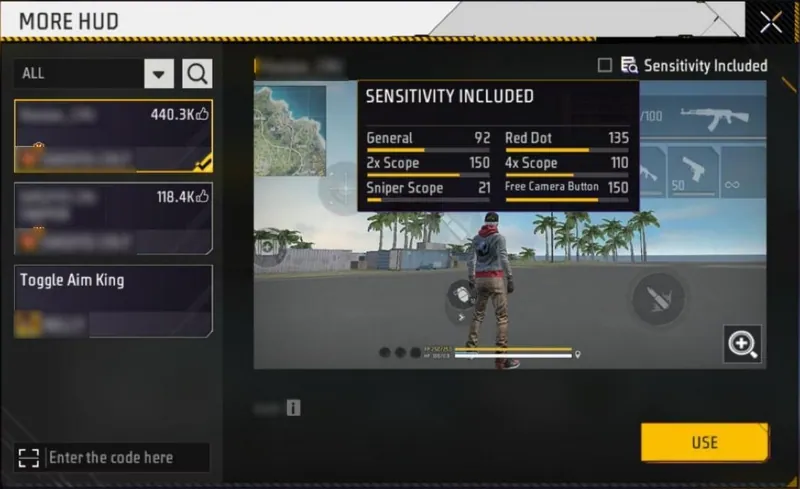
- Use a shared HUD that includes sensitivity. Go to Settings → In-Match → HUD → MORE HUD. Shared HUDs there have a Sensitivity Included box, and the small icon next to it shows the creator's six numbers. You can also type a friend's HUD code into the "Enter the code here" box. Our HUD guide explains HUD codes step by step.
We ticked the box to see how it works, but we did not press USE, so we have not seen exactly what changes. Going by the label, ticking it brings the creator's sensitivity along with the HUD. Write your own six numbers down first, or keep them in the card above, so you can switch back.
The top HUD in that list on 9 October, with 440,300 likes, carried General 92, Red Dot 135, 2x Scope 150, 4x Scope 110, Sniper Scope 21 and Free Camera 150. That is nothing like either Garena preset, which is a good reminder that there is no single "best" set.
Things that will not help
- "Auto headshot" sensitivity. No number aims for you. Headshots come from keeping your crosshair at head height and moving it a little at the right moment, and that takes practice.
- Sensitivity apps, "config" files and "headshot" tools. Anything that edits game files or claims to aim for you is a third-party program. It can steal your login, and using it can get your account banned.
- Changing "Smallest width" (DPI) in Developer options. Some videos suggest this. It changes the display scale of your whole phone, not just the game, and can make other apps hard to use. We have not tested whether it changes aim in Free Fire MAX. If you try it anyway, write down the original value first.
Quick answers
What is the best sensitivity for Free Fire MAX?
There is no single best set, because phones and thumbs differ. Start from Garena's DEFAULT (100, 100, 100, 100, 71, 63) if you are new, or Garena's HIGH (185, 185, 185, 170, 150, 150) if you rush close range. Then tune one slider at a time in Training.
What is the maximum sensitivity in Free Fire MAX?
200 on every slider. 100 sits in the middle of the bar.
Which sensitivity is best for headshots?
None makes headshots automatic. Keep your crosshair at head height, keep Aim Precision on Default while you learn, and practise in Training.
What does Sniper Scope sensitivity control?
The 8x scope. Tap Sniper Scope in the settings and the game says so itself.
Do 2 GB, 3 GB and 4 GB RAM phones need different sensitivity?
Not because of RAM. Fix the frame rate first with Smooth graphics and Performance Mode on, then tune the numbers.
How do I reset sensitivity to default?
Pick DEFAULT in the dropdown at the top right of the Sensitivity screen. The reset button only goes back to the numbers of whichever preset is selected.
Can I import someone's sensitivity with a code?
Not on the Sensitivity screen. But a shared HUD can include its creator's sensitivity: look for "Sensitivity Included" under Settings → In-Match → HUD → MORE HUD, where you can also enter a friend's HUD code. Note your own numbers first. To move your own settings to a new phone, use Settings Sync.
Can changing sensitivity get my account banned?
No. It is a normal setting inside the game. Third-party apps and modified game files are what put accounts at risk.
Next, set up your buttons with our HUD guide. Trying out the new M7, Skorp, RPK or Hawk? See our new guns guide. For free rewards, check the verified redeem codes, and for a stylish in-game name, try the Free Fire name generator.
More to read


