Free Fire MAX HUD Settings: Custom HUD, HUD Codes and Picking Your Layout
We went through every HUD screen in our own Free Fire MAX account: the four layouts, the editor, HUD codes and the MORE HUD library. We did not save, share or use anything.
The HUD is where your buttons sit on the screen. Free Fire MAX gives you four ready-made layouts, an editor to move, resize and fade every button, and HUD codes to share layouts with friends. A good HUD puts fire, jump and crouch exactly where your thumbs already are, so you never look down in a fight.
How we checked. On 9 October 2026 we opened every HUD screen in our own Free Fire MAX test account, running on an Android emulator (LDPlayer) on a PC. We opened the editor, the share screen and MORE HUD only to read them. We did not save, share or use any HUD, and the game was still on HUD 1 when we left. Other players' names in our screenshots are blurred.
The short version:
- Find it under Settings → In-Match → HUD.
- New player? Stay on HUD 1 and fix only what bothers you in the editor.
- Before you experiment, copy your own HUD share code, so you can always get your layout back.
- Hitting the wrong button in fights? Try Smart Adjust in the editor.
- Trying someone else's HUD? Watch the Sensitivity Included box: it can bring their sensitivity along too.
Where to find HUD settings
- In the lobby, tap the gear icon at the top right.
- Tap IN-MATCH in the menu on the left.
- Tap HUD, the first tab in the top row.
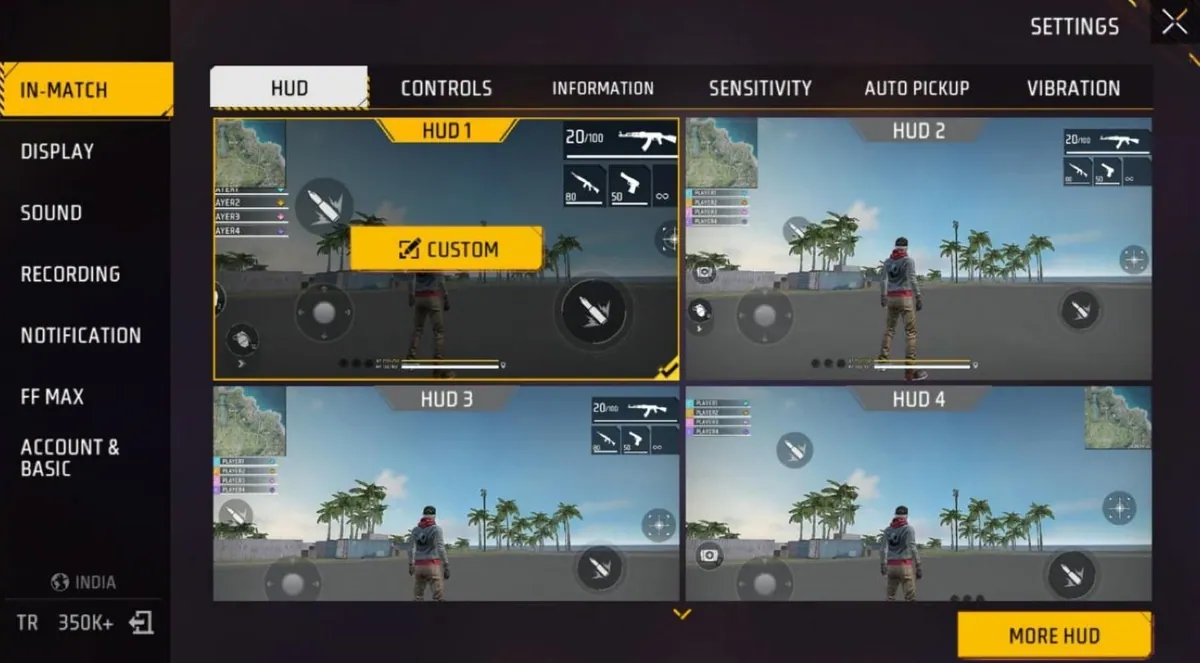
The four ready-made layouts
The HUD tab shows four layouts as preview pictures. The selected one has a yellow frame, a tick and a CUSTOM button. On our account, HUD 1 was selected. All four keep the movement joystick at the bottom left. Here is what changes in the game's own previews:
| Layout | What is different |
|---|---|
| HUD 1 | The default. A big fire button at the bottom right, a second fire button at the top left next to the team list, and the minimap at the top left. |
| HUD 2 | The same idea with smaller buttons and a smaller weapon panel. |
| HUD 3 | The second fire button moves down to the middle of the left edge. |
| HUD 4 | The minimap moves to the top right, and the weapon panel moves to the bottom centre. |
Whichever you pick, you can change every button in it with the editor.
The custom HUD editor
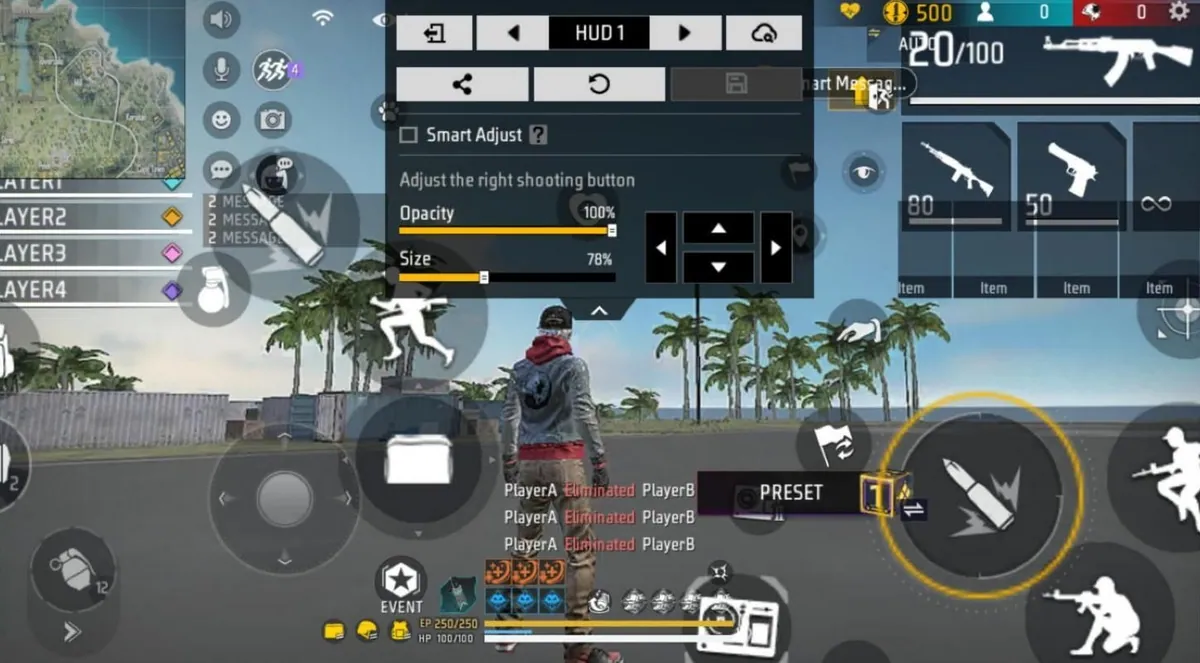
Tap CUSTOM on the selected layout. The editor shows your whole HUD with a panel at the top:
- ◀ HUD 1 ▶ switches which layout you are editing.
- The door icon on the left takes you back out. We left without changing anything, and the game did not ask us anything.
- A share icon, a reset icon and a save icon. The save icon stays grey until you change something.
- A cloud icon that opens "Obtain HUD", where you can type a HUD code (more on codes below).
- A Smart Adjust box (see the next section).
Tap any button on the HUD to select it. The panel then names it ("Adjust the right shooting button" in our screenshot) and gives you an Opacity slider, a Size slider and four arrows to nudge it into place. On our account the right fire button was at 100% opacity and 78% size.
Our tips:
- Make the buttons you press in every fight bigger: fire, jump, crouch and your gloo wall.
- Lower the opacity of buttons you rarely touch, so they cover less of the screen.
- Change one thing at a time, save, and play a round in Training before a ranked match.
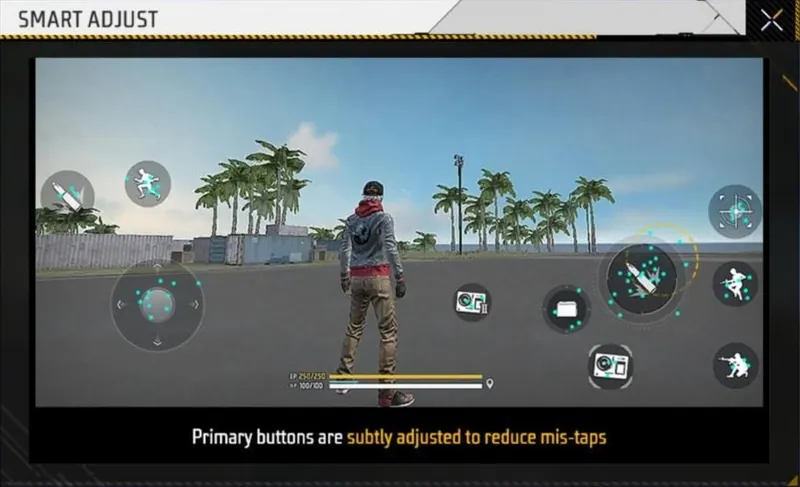
Smart Adjust
Smart Adjust is a checkbox in the editor, and it was off on our account. Its help screen says "Primary buttons are subtly adjusted to reduce mis-taps". The demo marks taps around the fire button, the joystick and other main buttons. Garena does not say exactly which buttons count as primary or how far they move. If you often hit the wrong button in a fight, turn it on and test it in Training.
HUD codes: share yours, use someone else's
Share your HUD, and keep a backup
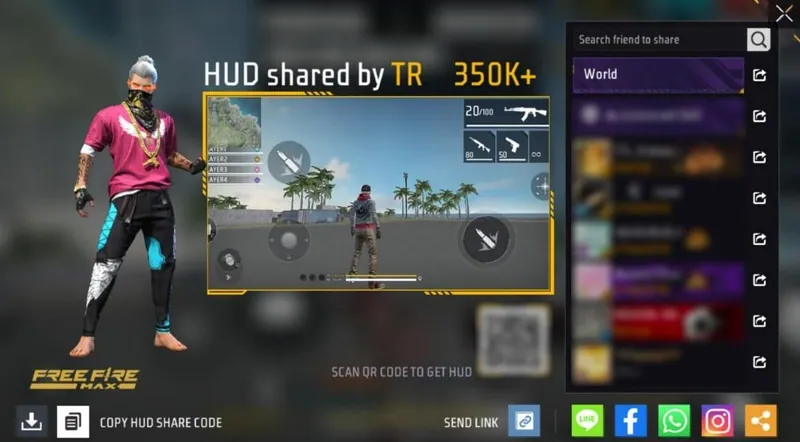
In the editor, tap the share icon. The share screen shows "HUD shared by" with your name, a preview of your layout and a QR code ("Scan QR code to get HUD"). At the bottom are COPY HUD SHARE CODE, SEND LINK, a download button, and LINE, Facebook, WhatsApp and Instagram. On the right you can send it to World chat, your guild or a friend.
Before you try anyone else's HUD, tap COPY HUD SHARE CODE and paste the code into a WhatsApp chat with yourself or your notes. That is your backup.
Use a HUD code
Two places take a code:
- In the editor, tap the cloud icon. "Obtain HUD" opens with "Please enter a HUD code" and an APPLY button.
- In MORE HUD (next section), use the "Enter the code here" box at the bottom left.
We did not apply a code, so we cannot tell you which of your four layouts a code replaces. Back up your own code first, then check which HUD you are on before you press APPLY.
MORE HUD: a library of shared HUDs
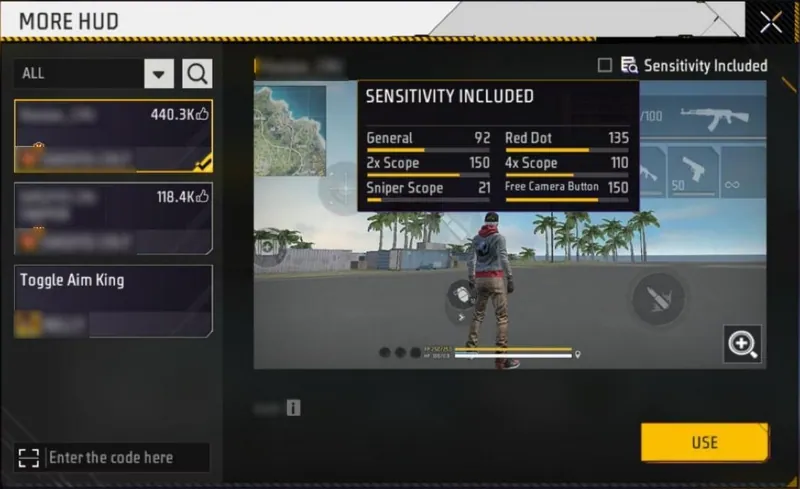
Tap MORE HUD at the bottom right of the HUD tab. It is a list of HUDs that players have shared:
- A filter with ALL, THREE-FINGER, RUSHER, SNIPER, EASY TO USE and HIGH-LEVEL, plus a search button.
- Each HUD shows its name, its creator and its likes. The top one had 440.3K likes on 9 October.
- A preview of the layout, a magnifier to zoom in, and a USE button.
- A Sensitivity Included box. Tap the small icon next to it to see the creator's six sensitivity numbers.
We ticked the box to check how it works, then unticked it, and we did not press USE. Going by the label, ticking it brings the creator's sensitivity along with the HUD. If you like your current aim, leave it unticked, or write your numbers down first. The top HUD carried General 92, Red Dot 135, 2x Scope 150, 4x Scope 110, Sniper Scope 21 and Free Camera 150. Compare that with Garena's presets in our sensitivity guide.
Which category to try (our suggestions):
- Two thumbs, like most phone players: start with EASY TO USE.
- Three or four fingers (claw grip): THREE-FINGER, then HIGH-LEVEL.
- Close-range fights: RUSHER. Long range: SNIPER.
Controls that add or change HUD buttons
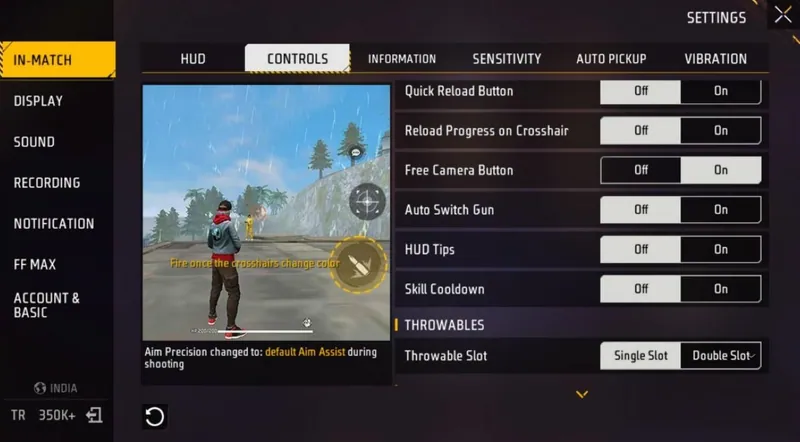
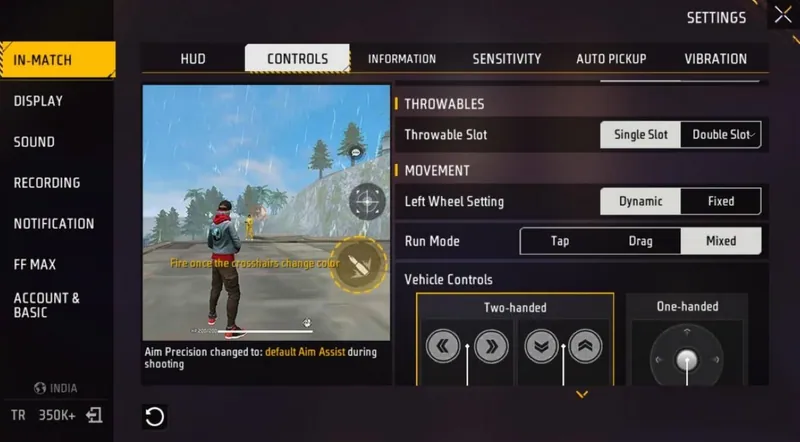
Settings → In-Match → Controls has switches that add buttons to your HUD or change how they behave. This is what our new account had on 9 October:
| Setting | Choices | On our account |
|---|---|---|
| Left Fire Button | Always, Show when scoped | Always |
| Hold Fire to Scope (Sniper Rifles) | Off, On | On |
| Quick Weapon Switch Button | Off, On | Off |
| Quick Reload Button | Off, On | Off |
| Reload Progress on Crosshair | Off, On | Off |
| Free Camera Button | Off, On | On |
| Auto Switch Gun | Off, On | Off |
| HUD Tips | Off, On | Off |
| Skill Cooldown | Off, On | Off |
| Throwable Slot | Single Slot, Double Slot | Single Slot |
| Left Wheel Setting | Dynamic, Fixed | Dynamic |
| Run Mode | Tap, Drag, Mixed | Mixed |
| Vehicle Controls | Two-handed, One-handed | Two-handed |
A few of these matter most for your layout:
- Left Fire Button: "Always" keeps the second fire button on screen. "Show when scoped" shows it only while you aim through a scope.
- Quick Weapon Switch Button and Quick Reload Button each add a button for that action. Turn them on only if you will use them; every extra button takes space.
- Free Camera Button is the button for looking around. How fast it turns is the Free Camera slider in our sensitivity guide.
The same tab also has Aim Precision, which our sensitivity guide explains.
Picking a layout for your hands
These are our suggestions, not rules:
- Two thumbs: HUD 1 with the Left Fire Button on "Always". Make the right fire button big, and keep jump and crouch within reach of your right thumb.
- Three or four fingers: browse THREE-FINGER in MORE HUD to see where others put jump and crouch for the index finger, then copy the idea in your own editor.
- Small phone: fewer, bigger buttons. Fade the ones you rarely use.
- After every change, play a round in Training. If your aim feels different after a new layout, re-check your numbers with our sensitivity guide.
Stay safe
- HUD codes from inside Free Fire MAX only change your layout, plus your sensitivity if you tick Sensitivity Included.
- Never install apps, "HUD scripts" or overlays that promise to show enemies or aim for you. They are third-party cheats. They can steal your login, and using them can get your account banned.
- Nobody needs your login or password to give you a HUD.
Quick answers
What is the best HUD for Free Fire MAX?
The one where your thumbs reach fire, jump and crouch without looking. Start from HUD 1, or try EASY TO USE in MORE HUD, then fix one button at a time in the editor.
How do I use a HUD code in Free Fire MAX?
In the HUD editor, tap the cloud icon and type the code under "Obtain HUD", then APPLY. Or type it in the "Enter the code here" box in MORE HUD. Copy your own code first as a backup.
How do I share my HUD?
Open the editor and tap the share icon. You can copy a HUD share code, send a link, show a QR code, or send it on WhatsApp, Instagram, Facebook or LINE.
Can a HUD code change my sensitivity?
Yes, it can. Shared HUDs in MORE HUD have a "Sensitivity Included" box, and ticking it brings the creator's sensitivity along. Leave it unticked to keep your own.
How do I get my old HUD back?
Paste the HUD share code you saved before you changed anything. That is why it is worth copying your code first.
What is Smart Adjust in Free Fire MAX?
A checkbox in the HUD editor. The game says it subtly adjusts the primary buttons to reduce mis-taps.
What is a three-finger HUD?
A layout for playing with both thumbs plus one index finger, so you can jump or crouch while you aim and shoot. MORE HUD has a THREE-FINGER category.
Set your aim next with our sensitivity guide. For free rewards, check the verified redeem codes, and for a stylish in-game name, try the Free Fire name generator.
More to read


